5 Hidden Features of the Pixma Pro 200S You Must Know About
Category: Electronics
Introduction
The Canon Pixma Pro 200S is often discussed for its vivid color output and compact footprint, but several lesser-known capabilities make it particularly valuable for photographers, designers, and small studios. Beyond headline specs such as print resolution and color gamut, the Pro 200S hides workflow-enhancing tools and driver-level controls that significantly affect print quality, consistency, and day-to-day usability. This article uncovers five of those hidden features, explains why they matter in real-world use cases, and provides practical advice for buyers considering the Pro 200S as part of a studio or home printing setup.
Quick overview: who benefits most
The hidden features covered here are especially useful for:
- Independent photographers preparing client proofing and limited-run prints
- Fine-art printers requiring predictable color across multiple media types
- Designers who need fast proof iterations from desktop apps
- Small studios that must balance quality with operational efficiency and consumables cost
Feature deep dive: 5 hidden features
1. Custom Paper Presets and Embedded ICC Profile Hints
While many photo printers include a list of supported media types, the Pro 200S offers a more nuanced approach: the driver allows creation of custom paper presets that store media type, paper thickness, and drying time preferences along with recommended print head adjustments. These presets act as local repositories for user-tested settings and can be paired with ICC profiles exported from third-party profiling tools.
Real-world use case: a studio that prints on a rotating selection of rag, cotton, and baryta-style fine art papers can save separate presets for each supplier and paper weight. During a production run, operators simply select the preset that matches the paper loaded; the printer applies the saved parameters and reduces the need for trial-and-error adjustments mid-job.
Practical tip: document the name of the paper, the ICC profile used, and the preset name in a small cheat sheet. This reduces mis-matches between driver settings and file soft-proofing preferences in Photoshop or Lightroom Classic.
2. Advanced Monochrome Controls with Channel Weighting
True black-and-white printing is often a challenge on color printers. The Pro 200S includes a hidden monochrome conversion mode in the driver and compatible Canon plugins that permit channel weighting and selective desaturation, enabling near-neutral greys and deeper tonal control without relying solely on software conversions.
Real-world use case: wedding and portrait photographers printing B&W client books can produce neutral skin tones while retaining punch in shadows, without requiring a separate pigment-based mono printer. The ability to tweak channel contribution at the driver level complements image edits made in the host application.
Practical tip: when switching to the driver’s monochrome mode, create a dedicated monitor-to-printer test strip that includes midtones and shadow detail. Run a head-cleaning and let the print fully dry before evaluating the neutrality.
3. On-demand Test Patch and Incremental Proofing
Small-format fine-art and photography prints frequently require test patches to confirm color and density. The Pro 200S exposes an on-demand test patch capability: the driver can print controlled increments (small strips or target patches) that reflect current nozzle health and ink balance. This makes it possible to perform quick checks without expending full-sheet media.
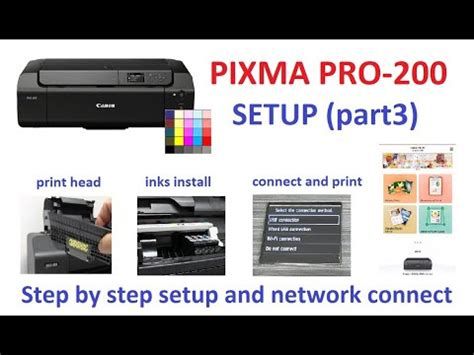
Real-world use case: commercial photographers shooting on location, then proofing at the studio, can validate calibration and color balance in minutes. A three- or five-patch proof prevents wasting expensive archival paper by revealing whether a cleaning cycle, nozzle check, or profile tweak is necessary.
Practical tip: integrate a standard 3-patch test (shadow, midtone, highlight) into the weekly maintenance routine. Keep a log of the test patch results to detect slow shifts in color balance over time.
Discover deals on Electronics — updated daily.
Shop Amazon →4. Mobile and Network Print Workflows with Variable Scaling
Beyond basic wireless printing, the Pro 200S supports flexible mobile and network workflows that include variable scaling, multi-page layout, and tiling directly from mobile apps or network drivers. This capability reduces preflight work in desktop software when fast proofing or client previews are needed.
Real-world use case: a designer in a busy studio can send scaled proofs from a tablet to the printer while the primary workstation continues color-managed production tasks. For exhibitions, tiled prints can be produced from single large files without complex external layout tools.
Practical tip: when using mobile or network scaling, disable application-level color management to avoid double profiling. Rely on the device or driver settings configured specifically for the chosen media preset.
5. Quiet Mode and Adaptive Power Management for Studio Environments
Many users assume noisy maintenance cycles are unavoidable. The Pro 200S includes a quiet mode that reduces fan and head movement noise during prints, and an adaptive power management routine that reduces wake-up time while still preserving ink head health. These features are subtle but meaningful for studios where print activity occurs alongside meetings or client viewings.
Real-world use case: boutique galleries or portrait studios that print client proofs while consultations are underway benefit from quieter operation. The adaptive power management ensures that the printer remains ready for short print bursts without consuming the full standby energy of 24/7 operation.
Practical tip: enable quiet mode when printing sequential small runs. Balance the energy-saving settings with scheduled nozzle checks to prevent ink drying in challenging environments (low humidity).
Detailed product review and analysis
The Pixma Pro 200S positions itself as a bridge between hobbyist photo printers and costlier studio models. Its strengths are most visible in color-rich output and driver flexibility. The hidden features described above reinforce a workflow-first approach: presets and in-driver controls reduce friction between editing and printing, while test patches and monochrome controls help maintain consistency across varied media.
Strengths observed in practical use include reliable borderless printing at common photo sizes, a compact footprint suitable for desktop studios, and integration with common photo plugins. Consumable costs—as with most dye-based photo printers—require attention when estimating total cost per print, especially for larger-format or gallery-quality archival runs. The Pro 200S favors speed and vividness, which makes it a good choice for photographic portfolios, client proofs, and color-accurate promotional material.
Limitations include the inherent trade-offs of dye-based inks versus pigment counterparts for long-term outdoor durability and extreme archival permanence. For buyers focused primarily on museum-standard, gallery-longevity pigment prints, a pigment-based model may be more appropriate despite the Pro 200S’s driver-level monochrome and profile conveniences.
Pros & Cons
- Pros
- Flexible driver presets and ICC profile support enable consistent results across multiple papers
- Advanced monochrome controls deliver neutral greys without complex external conversions
- On-demand test patching conserves expensive fine-art media during color checks
- Mobile and network scaling allow fast proofing from tablets and phones
- Quiet mode and adaptive power management improve studio comfort and readiness
- Cons
- Dye-based ink chemistry means shorter outdoor longevity compared with pigment systems
- Consumable and ink costs can add up for high-volume fine-art production
- Some advanced features are driver-dependent and require updated software/plugins
- Not optimized for very large-format gallery canvases beyond its supported max media size
Comparison table: Pixma Pro 200S vs comparable models
| Model | Ink Type | Best for | Notable hidden/workflow features | Ideal buyer |
|---|---|---|---|---|
| Pixma Pro 200S | Color-focused dye-based inks | Vibrant color prints, proofing, small studio work | Custom paper presets, driver monochrome controls, on-demand test patches, mobile scaling, quiet mode | Photographers/designers needing desktop-quality color with workflow flexibility |
| Canon Pixma Pro-100 | Eight-color dye ink set | Color-rich photography with a proven track record | Traditional driver profiles and third-party plugin compatibility | Users seeking established, cost-effective color printing |
| Epson SureColor P700 | Pigment-based UltraChrome | Archival fine art and gallery-quality prints | Advanced black-and-white modes, fine-art media handling, wider gamut for some pigments | Artists and photographers prioritizing longevity and archival standards |
Buying guide: what to consider before choosing the Pixma Pro 200S
1. Primary use case: proofing vs archival sales
Buyers should define whether prints are intended for client proofs, display, or long-term sales. The Pro 200S excels at proofing and vibrant client work; however, if the primary goal is museum-grade archival sales, a pigment-based printer may better suit permanence requirements.
2. Media compatibility and paper costs
Check the paper sizes and weights officially supported by the manufacturer. The hidden paper preset functionality reduces mismatches but does not replace the need to verify feed paths for thicker media. Factor in the cost of archival rag papers when calculating per-print costs.
Find top-rated Electronics products at great prices.
See Deals →3. Workflow integration and software support
Confirm compatibility with existing editing tools and plugins. Canon’s Print Studio Pro or equivalent drivers provide many of the hidden features. Studios relying on tethered workflows should verify that driver plugins support major applications such as Lightroom Classic and Photoshop.
4. Connectivity and mobile workflows
Network printing, AirPrint, and mobile apps enable faster proofs and client previews. Buyers that require multi-user access should prioritize a model with robust wireless and wired networking options and support for driver-level scaling and tiling.
5. Operational costs and maintenance
Ink consumption (especially for dye-based printers) is a recurring expense. Maintenance cycles, head cleaning frequencies, and paper waste during color calibration should be modeled into monthly operating budgets. The Pro 200S’s on-demand test patches help reduce waste, but regular preventative maintenance remains necessary.
6. Environment and print room conditions
Humidity and temperature affect dye inks and drying time. The Pro 200S’s adaptive power and quiet modes are valuable for small spaces, but controlled environment practices—ventilation, stable humidity, and dust control—extend print reliability and ink head lifespan.
Workflow recommendations for studio use
- Create a master preset library: save settings for each paper and profile combination and version them when media batches change.
- Standardize test patches: produce a small standard proof before every full run and log results to identify drift early.
- Batch-proofing strategy: use the mobile scaling/tiled printing features for client previews to speed turnaround without affecting production queues.
- Ink inventory management: keep spare cartridges for frequently used colors and schedule periodic nozzle checks to avoid mid-run failures.
Real-world scenarios demonstrating the hidden features
Scenario 1 — Event photographer: After a wedding, the photographer needs quick client proofs with accurate color. Using the Pro 200S presets, test patches, and mobile scaling, several proof sets can be produced while the photographer finalizes edits on the workstation. Quiet mode allows prints to be produced without disrupting family viewings at the studio.
Scenario 2 — Fine-art limited edition: A small gallery commissions an edition of 25 prints on a specialty cotton rag paper. Using saved paper presets and ICC profile hints, the printer operator reproduces consistent colors across the run. On-demand test patches avoid wasting costly full sheets during profile adjustments.
Scenario 3 — Design agency proofs: A design studio needs scaled proofs from tablets for internal approvals. Networked scaling reduces file handling overhead, enabling faster client review without re-opening source files on the main workstation.
Maintenance and troubleshooting notes
Regular maintenance extends usable life and print consistency. The Pro 200S’s head cleaning and nozzle check functions should be used before critical runs, especially after extended idle periods. If color shifts appear between runs, print the standardized test patches and compare against logged results to determine if a cleaning cycle or profile recalibration is required.
When facing persistent banding or color gaps, verify paper loading and alignment, run the automated head alignment routine if available, and ensure the latest driver and firmware are installed. Because several advanced features depend on driver/plugin updates, keeping software current preserves access to the hidden workflow tools.
Conclusion
The Pixma Pro 200S offers more than initial spec sheets reveal. Its custom paper presets, in-driver monochrome controls, on-demand test patching, mobile scaling options, and studio-friendly quiet and power management functions combine to deliver a versatile printing experience for photographers, designers, and small studios. These hidden features streamline color-critical workflows and reduce waste—two elements buyers value when balancing print quality against running costs. For those who prioritize vivid color, flexible driver control, and practical studio conveniences, the Pro 200S is worth careful consideration as part of a calibrated, well-documented print workflow.